Transforming Photos into Art: A Practical Guide to Watercolor Photoshop Photo Effects
In the evolving landscape of digital design, the line between photography and traditional painting continues to blur. For designers, marketers, and hobbyists alike, achieving a hand-painted aesthetic without spending years mastering brushwork is a common goal. This is where a Watercolor Photoshop Photo Effect becomes an invaluable resource. Rather than relying on complex manual techniques, these pre-configured templates allow users to convert standard high-resolution images into artistic compositions with remarkable speed and consistency.
Understanding how these tools function, their limitations, and how they compare to manual digital painting or automated mobile apps is essential for making an informed decision. This guide explores the practical applications, technical requirements, and strategic advantages of using professional-grade watercolor effect templates in your workflow.
Defining the Watercolor Photoshop Photo Effect
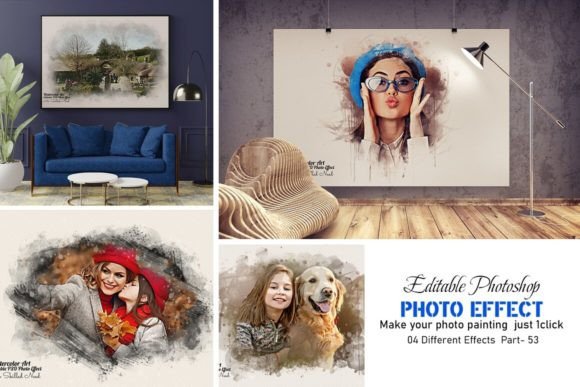
A Watercolor Photoshop Photo Effect is typically distributed as a PSD (Photoshop Document) file that leverages advanced layer structures, blending modes, and smart objects. Unlike simple filters found in basic photo editors, these templates are engineered to simulate the organic flow, texture, and color bleeding characteristic of real watercolor paints. The core mechanism relies on Smart Objects, a feature in Adobe Photoshop that allows non-destructive editing.
When you use such a template, you are not merely applying a static overlay. Instead, you place your photograph into a designated Smart Object layer. The template then processes this image through a series of pre-built adjustment layers, texture maps, and color grading tools. The result is a high-resolution output that retains the detail of the original subject while adopting the soft, fluid appearance of watercolor media. Because the layers are named and grouped logically, users retain full control over opacity, color balance, and texture intensity, allowing for significant customization despite the lack of manual painting skills.
Comparing Automated Templates vs. Manual Digital Painting
One of the primary decisions creators face is whether to use a template or learn digital painting from scratch. Both approaches have distinct tradeoffs regarding time investment, skill requirements, and creative control.
- Time Efficiency: Manual digital painting requires hours, if not days, to achieve a realistic watercolor look. It demands a deep understanding of light, shadow, and brush dynamics. In contrast, a Watercolor Photoshop Photo Effect can produce a professional result in minutes. This makes templates ideal for tight deadlines or high-volume projects.
- Skill Barrier: Digital painting has a steep learning curve. Mastery involves studying traditional art principles and practicing extensively with graphic tablets. Templates lower this barrier significantly. As noted in product specifications, "no skill need just past your photos," making them accessible to photographers, web designers, and social media managers who may not have formal art training.
- Customization Limits: While templates offer editable layers, they are bound by their initial design logic. If you need a highly specific, unconventional artistic interpretation that deviates wildly from standard watercolor behaviors, manual painting offers unlimited freedom. However, for most commercial and personal uses, the customizable parameters within a high-quality PSD—such as multicolor editing and texture swaps—are sufficient.
Evaluating Quality: Professional Templates vs. Mobile Apps
Another common alternative is the use of mobile applications or online AI converters. While convenient, these often fall short in professional contexts. Mobile apps typically compress images, resulting in loss of detail and lower resolution outputs unsuitable for print. They also offer limited control over the final look, often applying a "one-size-fits-all" filter.
Professional Photoshop templates, particularly those compatible with versions from CS4 through CC2023, maintain high-resolution integrity. They allow for precise adjustments that mobile apps cannot match. For instance, you can isolate specific color ranges, adjust the grain of the paper texture, or modify the saturation of individual elements. This level of granularity ensures that the final image looks bespoke rather than generic. Furthermore, because the working software version supports a wide range of Adobe releases, users do not need the latest hardware to achieve premium results.
Key Features to Look for in a Template
Not all photo effects are created equal. When evaluating a Watercolor Photoshop Photo Effect, several technical and usability factors determine its value and versatility.
Smart Object Integration
The presence of Smart Objects is non-negotiable for a professional workflow. This feature ensures that your original photo remains untouched and can be swapped out instantly. If a template requires you to rasterize layers or merge groups before editing, it limits your ability to experiment. A well-constructed template includes clear instructions on how to use the Smart Object option, ensuring even beginners can navigate the file structure without errors.
Layer Organization and Naming
Complex effects involve dozens of layers. A poorly organized file can be frustrating and difficult to customize. High-quality templates feature fully named layers placed in logical groups. This organization provides full control over each element, allowing you to toggle visibility, adjust blending modes, or fine-tune specific effects like paper texture or paint splatters independently.
Compatibility and Version Support
Software compatibility is a critical decision factor. A robust template should support a wide spectrum of Photoshop versions, including older iterations like CS4, CS5.5, and CS6, as well as modern Creative Cloud releases up to CC2023. This backward compatibility ensures that freelancers and agencies with varying software setups can utilize the same asset without compatibility errors. Additionally, English version support and included help files enhance usability for a global audience.
Color and Texture Customization
Watercolor art is defined by its vibrant, fluid colors. A versatile template should include multicolor editable options, allowing you to shift the palette to match brand guidelines or artistic preferences. The inclusion of various texture overlays—such as rough paper, canvas, or smooth finishes—adds depth and realism, preventing the image from looking flat or digitally sterile.
Best-Fit Situations for Using Watercolor Effects
Understanding when to deploy this tool is as important as knowing how to use it. These effects are particularly effective in scenarios where emotional resonance and aesthetic appeal outweigh photorealism.
- Wedding and Event Invitations: Couples often seek a romantic, soft aesthetic for save-the-dates and invitations. A watercolor effect can transform standard engagement photos into dreamy, artistic pieces that fit perfectly with floral or rustic themes.
- Social Media Content: In a feed saturated with polished, high-contrast images, a watercolor-style post stands out. It conveys creativity and approachability, making it ideal for lifestyle bloggers, artists, and boutique brands.
- Print-on-Demand Products: Designers creating merchandise such as tote bags, mugs, or posters can use these effects to create unique, art-like designs from stock photography or client photos. The high-resolution output ensures crisp printing quality.
- Personalized Gifts: Turning a family portrait or pet photo into a watercolor painting creates a heartfelt, unique gift. The ease of use allows individuals with no design experience to create professional-looking presents.
Limitations and Considerations
While powerful, these templates are not a panacea. They work best with subjects that have clear definitions and good lighting. Images with low contrast, excessive noise, or poor composition may not translate well into the watercolor style, as the effect relies on detecting edges and color blocks. Additionally, while the template handles the heavy lifting, a basic understanding of Photoshop’s interface is still beneficial for troubleshooting and fine-tuning.
It is also important to recognize that every subject is different. A portrait will require different adjustments compared to a landscape or a still life. Users should be prepared to experiment with the provided layers to find the right balance for each specific image. The "super easy" nature of the tool refers to the setup process, but achieving the perfect artistic nuance may still require some iterative tweaking.
Making the Right Choice
Choosing a Watercolor Photoshop Photo Effect is a strategic decision to balance quality, speed, and accessibility. For professionals who need consistent, high-resolution artistic outputs without the time commitment of manual painting, these templates offer an optimal solution. They bridge the gap between technical photography and expressive art, providing a reliable framework that respects the user’s time while delivering professional results.
By selecting a template with robust Smart Object integration, comprehensive layer organization, and broad software compatibility, you ensure a flexible and error-free workflow. Whether you are enhancing client deliverables or creating personal keepsakes, understanding the capabilities and constraints of these tools allows you to leverage them effectively, turning ordinary photos into extraordinary visual stories.